Configuring Default Printer

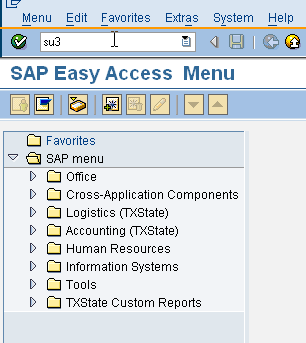
1. AFTER LOGGING ON TO THE SAP GUI you will be at the SAP Easy Access Menu. Type in Transaction Code SU3 and hit Enter


Image

2. The following screen will appear and you should click on the Defaults tab.
Image


3. Click on the right side of the OutputDevice box so the Pick List icon appears.

Image

4. When the following box appears, click on the .

Image
5. This will bring up a list of all of your available printers. The standard printer options

highlight the printer you want as your default printer, then click on

Image
6. Your Maintain User Profile screen should look like this. Make sure to check the Output Immediately option box. Then click on the Save icon.
Image

Points regarding table

What is lock table over flow ? How to resolve lock table overflow issue ?

  • What is lock table overflow ?
  • How to identify lock table over flow issue ?
  • What is the parameter to be changed to increase lock table size in SAP ?
  • What is the reason for lock table overflow ?
  • How to resolve lock table overflow ?
——————————————————————————————–
What is lock table overflow ?
SAP manages locks using lock table. The lock table contains all of the informaton related to locks like who is holding the lock and which locks are currently held etc. The size of the lock table can be specified by the SAP parameter enque/table_size. The size of the lock table limits the number of locks, lock owners and lock names. If this size is exceeded, then the lock table overflow occurs.
How to identify lock table overflow issue ?
In SM21 transaction log and ST22 dumps, if you find any error messages like LOCK_TABLE_OVERFLOW, Lock table overflow, Internal lock administration error it means there is a lock table overflow issue.
What is the parameter to be changed to increase lock table size in SAP ?
Parameter enque/table_size to be changed to increase or decrease lock table size using RZ10 transaction. Default value of this parameter is 32768. The min value that can be set is 4096 and max value is 102400. The unit for this parameter is KB.
As this is not dynamic parameter, for the new value to take effect, a system restart is required after modifying the parameter.
What is the reason for lock table overflow ?
A lock table overflow can occur due to
  • The lock table is configured too small (i.e value set to enque/table_size parameter is very low)
  • Due to improper design of application which sets a large number of locks
  • Number of enqueue worprocesses configured in a sap system are less and update is very slow/hanging due to which lots of locks are accumulated in lock table
  • Running a custom report with improper selection criteria (like very long time periods data pull) which sets so many locks & eventually lock table overflow occurs
 How to resolve lock table overflow ?
  • Increase the size of lock table i.e increase the parameter enque/table_size value using RZ10 transaction.
          To determine the optimal value for this parameter, you can check the maximum locks set so far in the history and the current number of locks set from SM12 -> Extras -> Statistics

List of common database errors found in SM21 in SAP

Here is a list of some common database errors found in tcode SM21 in SAP.

These are not very critical errors and can be ignored depending on situation.

Table names and error code in my case may differ from yours.


  • SQL statement violates database system restriction
  • Database error 24909 at UPD access to table TST01
  • Database error 1555 at FET access to table MKPF
  • Database error: TemSe->XRTAB(2)->128 for table TST03 key
  • Database error: TemSe->XRTAB(3)->1 for table TST01 key
  • Database error: TemSe->XRTAB(2)->128 for table TST03 key Challan No1914
  • Database error 1013 at COM
  • Database error -2 at FET
  • Database error 24909 at SEL access to table REPOLOAD
  • Database error 3114 at FET
  • For READ TABLE, the database table TDRG_MEMO_DET was not found
  • Database error 24909 at FET
  • Database I/O error
  • For READ TABLE, the database table TKKO was not found
  • For READ TABLE, the database table TBPA was not found
  • For READ TABLE, the database table TDRG_MEMO_DET was not found
  • Database error: TemSe->XRTAB(3)->1 for table TST01 key
  • DBIF_RSQL_INVALID_RSQL
  • Database I/O error
  • Database selection with invalid cursor 2
  • Database error 1410 at FET access to table BLPK

Few Important values to be monitored in ST02 & ST06/ST06N

In ST02,

1) Hit ratio for each buffer should be greater than 95%.
2) If hit ratio is less than 95%, no swap should be there.
3) Current usage of extended memory should not cross 75%.
4) We have to check the swaps for each buffer. For program buffers it should be 10000 hits/ day & for other buffers it should be 1000 hits/ day.
5) We have to check the free space & the free directory for each buffer.

In ST06/ST06N,

1) Ideally CPU should be free for 60% of the time.
2) Page out/s should be 0.
3) Under LAN, we have to check for collisions & errors. They should be 0.
4) We have to check for the SAPOSCOL status.

Device Types

Importing a Device Type with the SPAD Transaction
1.Download the SAP device type and save the .pri file to a directory on your computer.
(You can download .pri file from companies website of your printer)
2.Logon to SAP and select the SPAD transaction.
3.Select “Utilities” at the top of the screen, select “For device types”, and then select “Import”
 Image
4. When the report appears, select the Device Type radio button.
5. Type in the name of the device type you want to import in the field to the right of object name
 Image
6. Select the execute button in the upper left corner of the screen (check mark inside the clock).
7. In next message box Select the “Local Object” button.
8. In next message box Select device type to import in SAP
9. When the import process is complete, a message will appear on screen stating “Object successfully imported.”

Printer Configuration

spool request can be viewed in SP01 transaction as below :

enter username or spool request number  or you can put * also

Image

Click on execute to view the below list of spool requests.

Trouble shooting Printer:

1)Ping the printer
2) Fire the test print from SAP
Lpstart –a
Eg :-lpstart –a zgam

Lpstart –o zgam (Will get the print jobs are accessing)

Hpnadmin (ip address of printer)

Rsp0041:- To delete the old spool requests

Common errors:
If after cleanup and you encounter one of these errors:

A. SPOOL_INTERNAL_ERROR
B. spool overflow (assume you have not adjust max spool number before)
C. …no more free spool request numbers…

SAP note 48284 mentioned that change:

1. In Client 000, execute transaction SNRO -Number Range button – Interval. Default numbering range is 100 – 32,000 (which can print up to 31,900 requests)
To do this:
Transaction SNRO > Table SPO_NUM > Number Ranges (button) > Modify > change the max limit to desired number.

What is spool overflow ( SPAD, RZ20 & SNRO )

2. Define profile parameter rspo/spool_id/max_number up to 2^31
3. Define rspo/spool_id/loopbreak to same value as above. This is optional.

We don’t see a need to have more than 31,900. Well if this happens, do the things above.

Indirectly, database table size going to grow to few GB, and indirectly slowing down all print request, as well as unnecessary database size.

Local printer configuration

Local printing is the most reliable and often the fastest method to transfer data from the SAP system to the host spool system, as the SAP spool server (application server with a spool work process) is in the same host system as the host spool system (operating system spooler). It is irrelevant whether the printer is directly connected to the PC or whether it is a shared network printer.

To set up the print architecture for local printing, follow the procedure below:

       1.      Set up an SAP spool server on a host system from which you can conveniently drive your printers.

The spool server is an application server that provides spool processing. It therefore requires at least one spool work process. The number of spool work processes is defined by the parameter rdisp/wp_no_spo, and this must always be set to at least 1.

       2.      Define all output devices that the SAP spool server is to use in the host spool system (operating system spooler).

You can use both locally connected and shared network devices.

       3.      Define the output devices in the SAP spool system.

To do this, create device definitions for the output devices in transaction SPAD (choose the Output Devices pushbutton  Output Device menu  Create/Create Using Template).

–         Specify the host system on which the spool server (application server with a spool work process) is running, as the spool server of the output device.

–         In the Access method field, choose method L for a UNIX host.

–         For a Microsoft Windows host, choose access method C.

REMOTE PRINTER

With remote printing, the SAP spool work process sends the formatted data stream to the output device over a network connection.

The options for the data transfer to the output device are listed below:

  •   Transfer to a network printer

Network printers simulate their own host spool system. They can be directly connected to the network with a network card and receive SAP output data.

Consider the storage capacity of the network printer and the size of the print requests.

Access method U

  •   Transfer using a UNIX destination host

The host spool system is on a host that uses UNIX as its operating system. The data is forwarded to the Line Printer Daemon (lpd).

Access method U

  •   Transfer using a Microsoft Windows PC as the destination host

The host spool system is on a host that uses Microsoft Windows as its operating system. Depending on the access method, you can use SAPSprint from SAP or, for Microsoft Windows XP, the TCP/IP Print Server of Microsoft Windows XP. SAPSprint and TCP/IP Print Server accept the data stream and forward it to the host spool system.

Access Methods:

  S (proprietary SAP protocol) for use with SAPSprint

  U (UNIX Berkeley protocol) for use with the TCP/IP Print Server of Microsoft Windows XP and with SAPSprint

While data is simply forwarded with the access method U, the access method S has the following attributes:

  Encrypted transfer, for example for HR data

  Compressed transfer

Printer Administration

When we give print command then following requests are generated:-

  • Spool request – It is contains the device independent print data and includes administrative information such as author, date and number of copies.
  • Output request – The data is converted into printer understandable language.
  • TEMSE folder- All the requests are stored in this folder on operating system level.
  • SAP SPOOL System- Then TEMSE folder forward request to SAP Spool System.
  • Operating Spool System – This is the spool system at operating level.

There is three types of printing:-

  • Local printing
  • Remote printing
  • Front end printing

FRONT END PRINTING

  • Go to transaction SPAD
  • click on Display for Output Device (or choose menu Configuration->Output Devices)

Image
click on the change icon (or type F8)

Image

click on the create icon (or type Shift-F1)

Image

fill-in fields as needed

In First tab “Device Attributes”

    • Output Device: any name starts with “Z”
    • Device Type: SWIN or SAPWIN

In Second tab “Access Method”

    • Host Spool Access Method: F: Printing on Front End Computer
    • Host printer: __DEFAULT

Please remember in above step its two times under-scope then DEFAULT
Image

How to transport request to different client in the same SAP system ( SCC1 )

Transaction code SCC1 is a supplement to the client copy. It can be used to transfer individual transport requests directly out for the source client into the the current client 

Transaction code SCC1 is different from transaction code STMS because transaction code SCC1 is used to transport request from different client in the same system. Example, you want to transport request DEV12345 from client 300 into client 200 in DEV system. The transport request does not need to be released status and you must logged to the target client to execute this.

Goto SCC1—- here 300 is source client & 200 is target client, you must logged to the target client to execute this, which is 200 hereImage

Transport Cycle

Request is created when the development of blue prints is completed and it is sent to quality server .

Creating workbench request

Creating workbench request

Releasing the request.

Creating workbench request

Creating workbench request

Request in quality server

Request in quality server


Importing request to production server

Importing request to production server

request in production server

request in production server